The path to resurf is always written out in full, because apps like Claude Desktop and Cursor don't get your Terminal's PATH and a bare resurf fails in them. What the agent reads from your library goes to the agent's AI provider, like anything else you show it.
Connect an agent
Add Resurf to Claude, Cursor, Codex or another MCP client once, and it can search and read your captures.
- Start
- Resurf menu → Connect AI Agents…
- Where
- Settings → MCP
- On
- Mac
Connect an agent
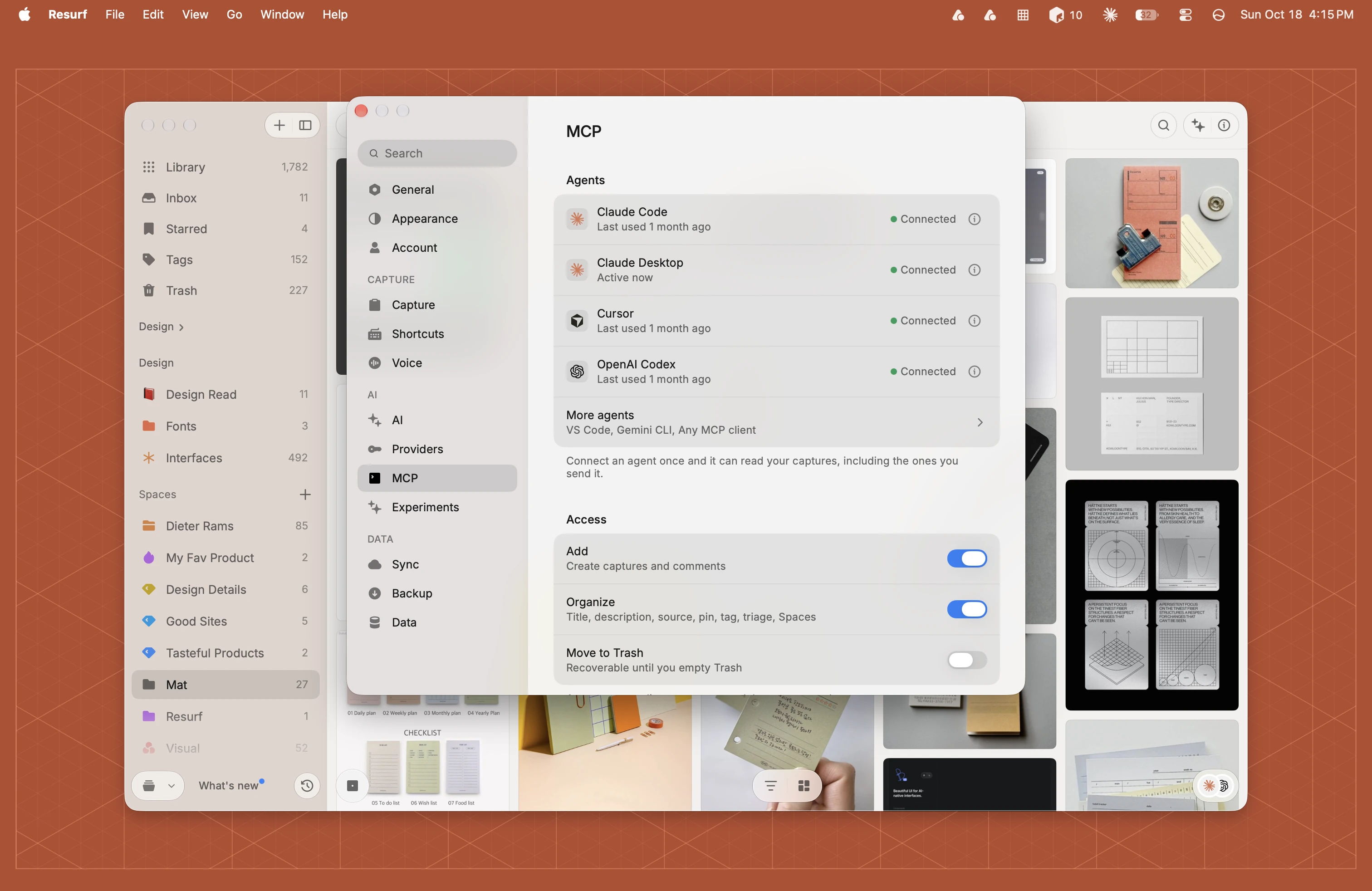
Choose Connect AI Agents… from the Resurf menu, or open Settings and pick MCP under AI.
Under Access, turn on what the agent may change before you connect. An agent set up with every switch off can only read. See What agents may do.
Under Agents, click Connect on your agent's row. If it isn't listed, open More agents.
Click the button in the popover and finish in the agent, as described below.
The row shows Connected once the agent starts Resurf. Click Recheck connection to check now.
How it works
Resurf connects as a local MCP server. Your agent starts the resurf program on this Mac and talks to it over standard input and output; nothing listens on the network.
Every setup below runs the same command: the full path to resurf, then mcp serve, --vault with the path to your library, and --allow-write when any Access switch is on. The app fills in both paths for you. The program is usually /Applications/Resurf.app/Contents/Helpers/resurf. On this page they're written /path/to/resurf and /path/to/Resurf Library.
Claude Code
Click Copy setup command and run it once in Terminal. It needs the claude command. Then start a new Claude Code session.
Terminal
claude mcp add --scope user resurf -- '/path/to/resurf' mcp serve --vault '/path/to/Resurf Library' --allow-write--scope user makes Resurf available in every folder, not just the one Terminal is in. If Resurf is already added, remove it first, then run the setup command again. To remove it:
Terminal
claude mcp remove --scope user resurfClaude Desktop
Click Add to Claude. A panel asks for Claude's settings folder: select the Claude folder in Library → Application Support and click Allow setup. If it's missing, open Claude once, then try again. Then quit Claude completely and reopen it.
Resurf adds itself under mcpServers in ~/Library/Application Support/Claude/claude_desktop_config.json and leaves your other servers alone. To remove it, open Claude → Settings → Developer → Edit Config, delete the resurf entry under mcpServers, and restart Claude.
If Resurf says Claude's settings file isn't valid, fix it from the same Edit Config button, then try again.
Cursor
Click Add to Cursor, then approve the install in Cursor. Check Cursor Settings → Tools & MCP for the connection and its tools.
If Cursor doesn't open, Resurf offers Copy configuration instead: merge it into ~/.cursor/mcp.json.
~/.cursor/mcp.json
{
  "mcpServers" : {
    "resurf" : {
      "args" : [
        "mcp",
        "serve",
        "--vault",
        "/path/to/Resurf Library",
        "--allow-write"
      ],
      "command" : "/path/to/resurf"
    }
  }
}
To remove it, delete resurf in Tools & MCP, or from ~/.cursor/mcp.json.
VS Code
Click Add to VS Code and approve the install, then start Resurf from MCP: List Servers in the Command Palette.
If VS Code doesn't open, paste the configuration into MCP: Open User Configuration. VS Code calls the list servers, not mcpServers.
MCP: Open User Configuration
{
  "servers" : {
    "resurf" : {
      "args" : [
        "mcp",
        "serve",
        "--vault",
        "/path/to/Resurf Library",
        "--allow-write"
      ],
      "command" : "/path/to/resurf"
    }
  }
}
To remove it, choose MCP: List Servers, pick resurf and remove it, or delete it from that file.
Use a local VS Code window. Remote SSH, containers and WSL need Resurf installed in that environment.
OpenAI Codex and ChatGPT
Click Copy setup command and run it once in Terminal. It needs the codex command. Then start a new Codex session.
Terminal
codex mcp add resurf -- '/path/to/resurf' mcp serve --vault '/path/to/Resurf Library' --allow-writeResurf is saved as [mcp_servers.resurf] in ~/.codex/config.toml. When Access lets the agent change things, you can ask Codex to confirm each change by adding this inside that section:
~/.codex/config.toml, under [mcp_servers.resurf]
default_tools_approval_mode = "prompt"To remove it, run codex mcp remove resurf, or delete the section.
The ChatGPT desktop app uses this same setup. ChatGPT in a browser can't start a program on your Mac, so it can't connect; send it captures as text instead.
Gemini CLI
Click Copy setup command and run it once in Terminal. It needs the gemini command. Then start a new Gemini session, and run gemini mcp list to check the connection.
Terminal
gemini mcp add --scope user resurf '/path/to/resurf' -- 'mcp' 'serve' '--vault' '/path/to/Resurf Library' '--allow-write'--scope user saves it for every folder; without it, Gemini writes a settings file into whatever folder Terminal is in. To remove it, run gemini mcp remove --scope user resurf.
Gemini runs local servers only in folders you've marked as trusted.
Windsurf, Zed, Cline and other clients
Pick Any MCP client under More agents and click Copy configuration. Choose a local, stdio server in the client. If it reads an mcpServers block, merge this into its MCP settings:
MCP settings
{
  "mcpServers" : {
    "resurf" : {
      "args" : [
        "mcp",
        "serve",
        "--vault",
        "/path/to/Resurf Library",
        "--allow-write"
      ],
      "command" : "/path/to/resurf"
    }
  }
}
If its settings have separate fields, enter /path/to/resurf as the command and these as the arguments, one per entry:
Arguments
[
  "mcp",
  "serve",
  "--vault",
  "/path/to/Resurf Library",
  "--allow-write"
]
Some clients name the block differently; follow their MCP settings. To remove it, delete the resurf entry from the client's MCP settings.
Clients that run in the cloud or in a browser can't start a program on your Mac, so they can't connect.
Check the connection
- Connected means the agent is set up for this library. Under it, Active now means the agent has Resurf running right now, and Last used says when it last did.
- Check setup means the agent last connected to a different library, or couldn't open this one. Click Set up again.
- To test the server itself, expand Advanced and click Test beside Server. It starts Resurf the way an agent does and reports the version, how many tools it offers, and whether they're read-only or read and write.
Changing Access later
Resurf reads the Access switches on every call, so turning one off takes effect at once, even for an agent that's already running.
Turning one on is different if the agent was set up with every switch off: its command has no --allow-write, so it can only ever read. Turn the switch on, then click Set up again and repeat the setup.
An agent usually picks up newly allowed tools when it starts a new session.
If something goes wrong
| You see | What to do |
|---|---|
| The row never shows Connected | The agent hasn't started Resurf yet. Start a new session, or quit and reopen Claude Desktop, then click Recheck connection. |
| No active session. Open the agent, then recheck. | It's set up but not running. Open it. |
| Connected to another library. Set up again to use this one. | Click Set up again. |
| Couldn't open this library last time | Click Set up again, then start a new session. |
| The agent says a tool needs a permission that's off | That Access switch is off. Turn it on, and set up again if the agent was read-only. |
command not found: claude, codex or gemini | Install that agent's command line tool first. |
| Works in Terminal, fails in the app | The config says resurf without its full path. Copy the configuration again. |
Questions
I can't find Settings → Agents.
The pane is called MCP, under AI in the Settings sidebar. Connect AI Agents… in the Resurf menu goes straight there.
What can a connected agent do?
Search and read your captures, always. With the Access switches on, it can also add captures and comments, organize them, or move them to the Trash. MCP tools lists each tool and what it needs.
How do I disconnect an agent?
Resurf has no disconnect button. Remove the resurf server from that agent, as described in its section above, for example claude mcp remove --scope user resurf for Claude Code. Turning every Access switch off still lets it read your library.
Can I read the setup command before I run it?
Yes. It's on this page for every agent, with your two paths as placeholders. Copy setup command copies the same text with your paths filled in.