Resurf 2 is a completely new app, rewritten in Swift with no Electron. That means it doesn't quietly inherit your old library on first launch. You bring it over yourself, once, from a screen built for exactly that.
It takes a few minutes and it doesn't touch your old vault. Here's how it works.
Before you start
Don't delete Resurf 1 yet. The import only needs your vault folder, but keep the old app around until you've confirmed everything landed. It's the quickest way to compare. Already deleted it? You can still download it for Apple Silicon or Intel. The installer is labelled 2.0 beta, which was the final release of the old Electron app, not the new Resurf 2.
Both apps can sit on your Mac at the same time. They're separate apps as far as macOS is concerned, with separate settings and separate vaults. The only snag is the filename: two apps can't both be /Applications/Resurf.app. Before you drag Resurf 2 into your Applications folder, rename the old one to Resurf 1.app. That's just the file on disk. It still shows up as "Resurf" everywhere in the interface.
Quit Resurf 1 before you import. The importer will warn you if it's still running.
If your vault lives in iCloud, download it first. The importer can pull files down itself, but a fully local vault imports without stalls. See Finding your vault in iCloud.
Finding your vault in iCloud
Your vault is a folder named Resurf Vault, in iCloud Drive for most people, in Documents for some. Renamed it during setup? The exact path is in Resurf 1's settings, and Resurf 2's picker lists every vault it finds by name anyway.
A cloud icon next to the folder means macOS hasn't downloaded it to this Mac yet. That's the main reason imports stall or skip files:
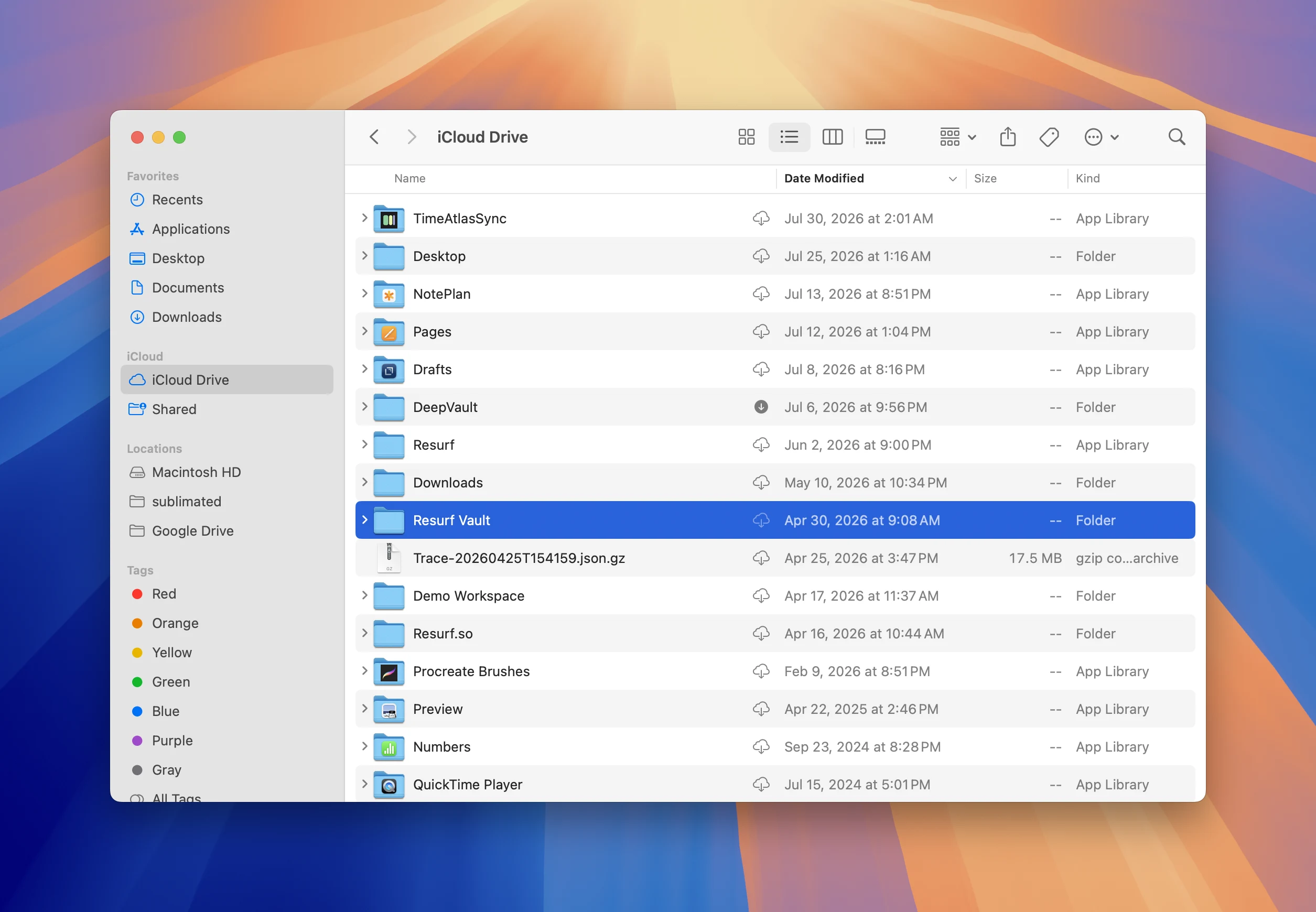
Right-click the folder and choose Download Now (or Keep Downloaded). When the cloud icon is gone, you're ready to import.
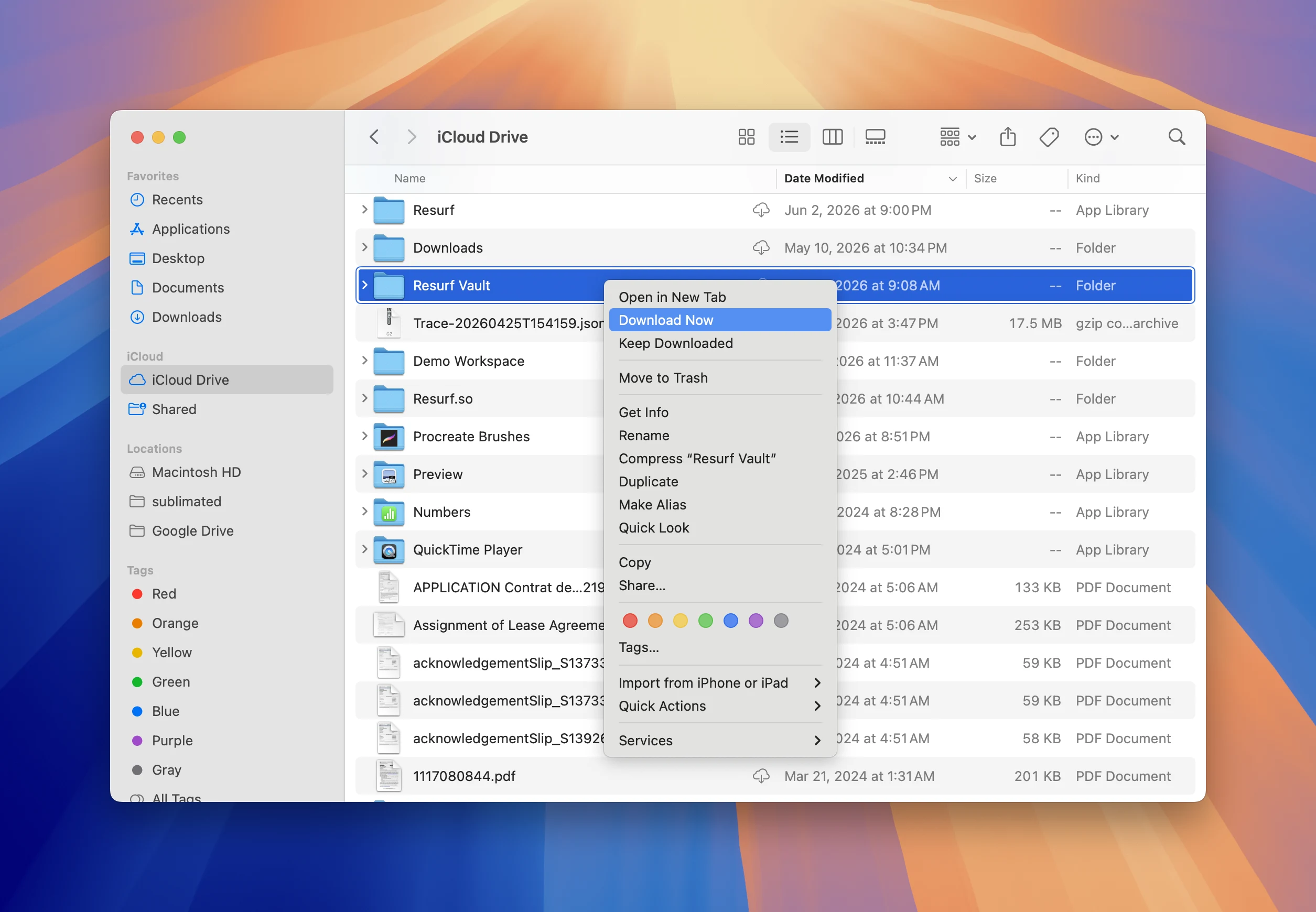
If the download stalls:
- Turn off Optimize Mac Storage in System Settings → Apple ID → iCloud → iCloud Drive
- Check you're signed into the same Apple ID and iCloud Drive is on
- Free up disk space: you need room for the vault plus the imported copy, roughly twice its size
- iCloud lags after the Mac wakes from sleep. Wait a minute, then try Download Now again
Step 1: Install Resurf 2
Download it from resurf.so/download and drag it to your Applications folder.
Resurf 1 updated itself through its own updater. Resurf 2 uses a different one, so there's no automatic hop between them. This download is the bridge.
Step 2: Open the importer
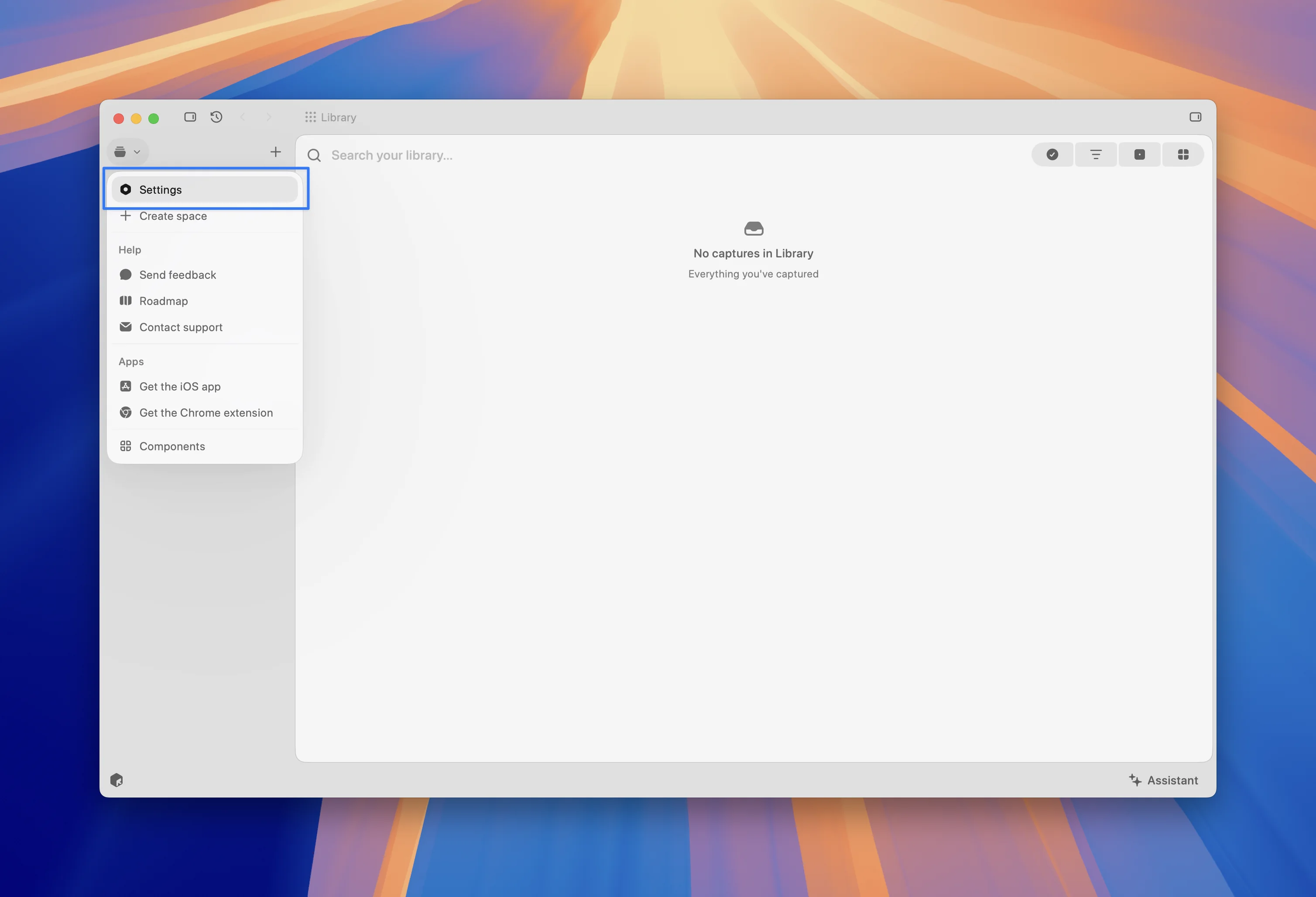
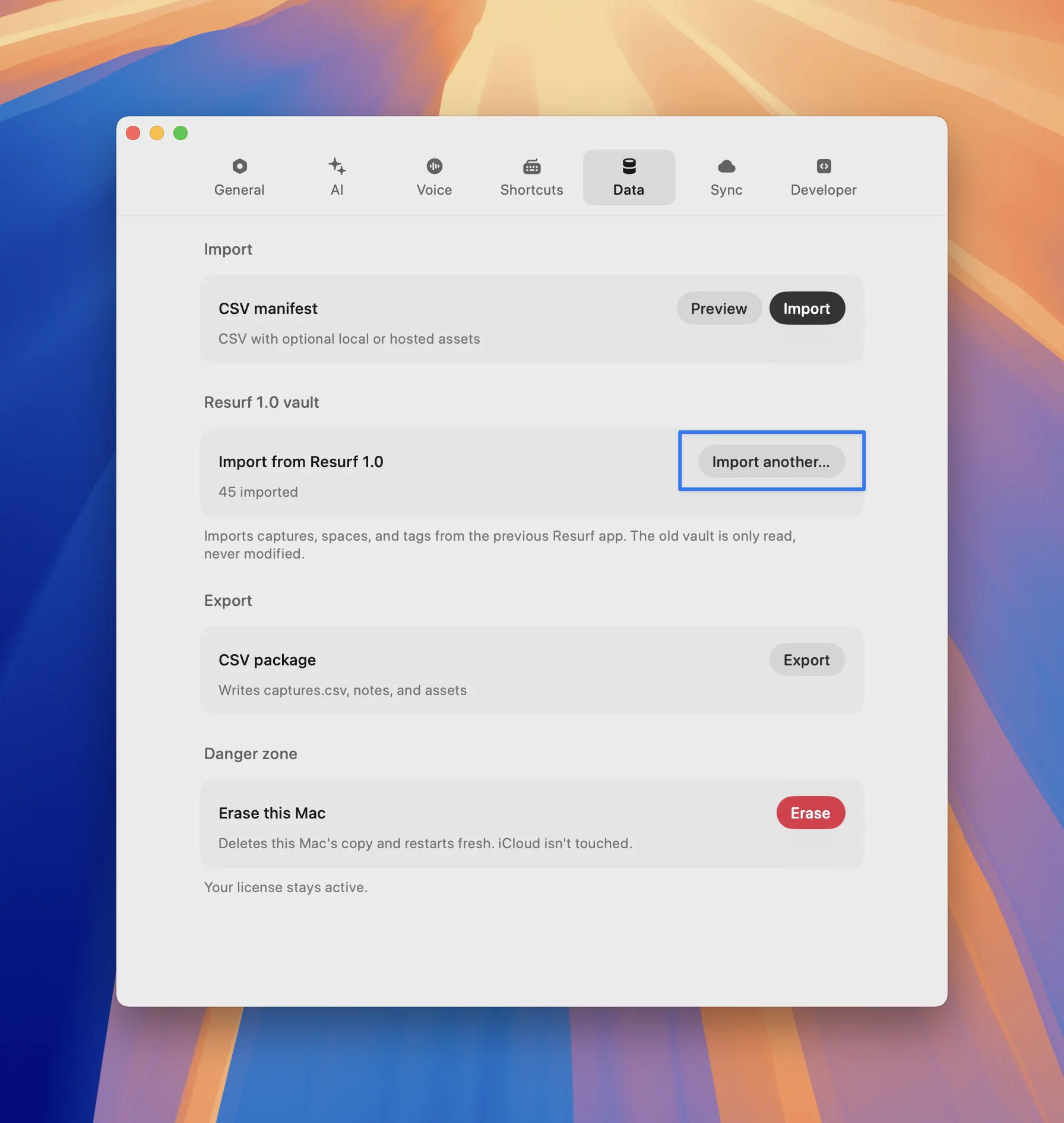
Open Settings from the sidebar menu, then go to the Data tab and find the Resurf 1.0 vault section. Click Import from Resurf 1.0.
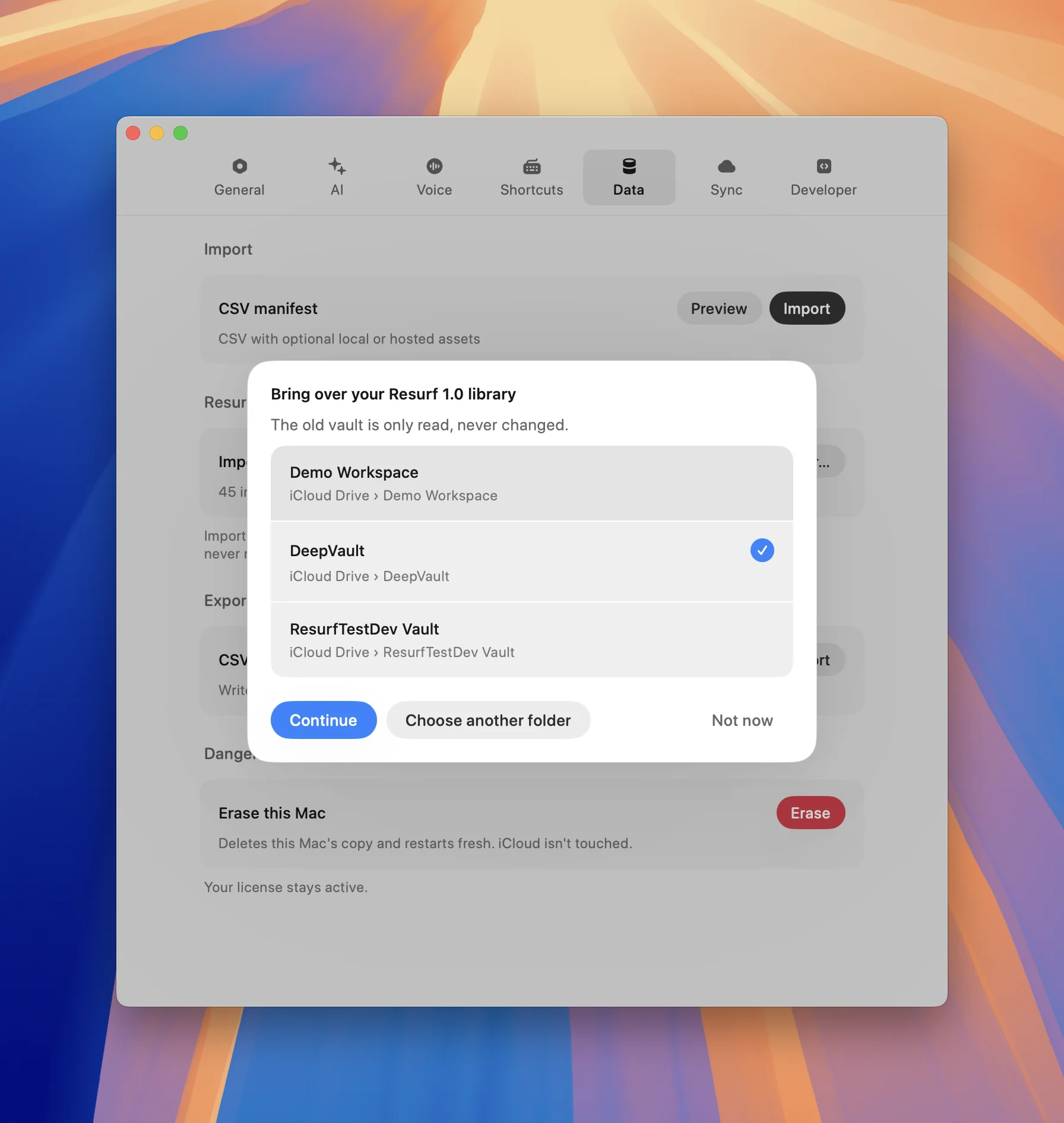
Step 3: Pick your vault
Resurf 2 finds your old vault on its own. It reads the same config file the old app wrote, so it knows the exact folder even if you gave your vault a custom name or kept it somewhere unusual.
If it finds one, you'll see it listed with its name and path. If you had more than one vault, they'll all be listed and you can choose. Click Continue.
If nothing is detected, click Choose folder and select your vault manually. The path is shown in Resurf 1's own settings, or find it in Finder → iCloud Drive (see Finding your vault in iCloud). A valid vault is a folder containing a captures folder and a .config/vault.json file. If you pick something else, Resurf will tell you it isn't a Resurf 1.0 vault rather than importing junk.
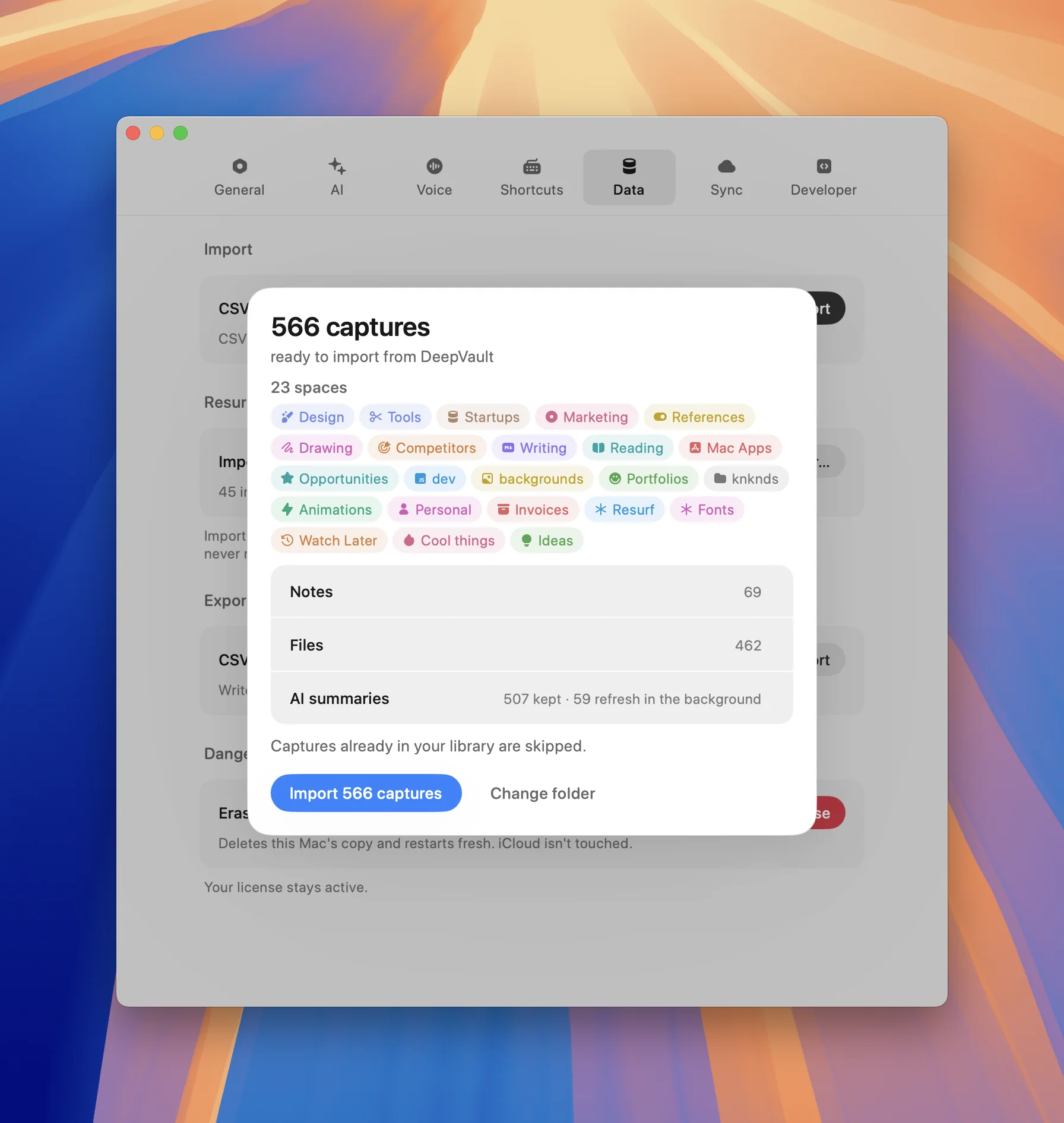
Step 4: Check the preview
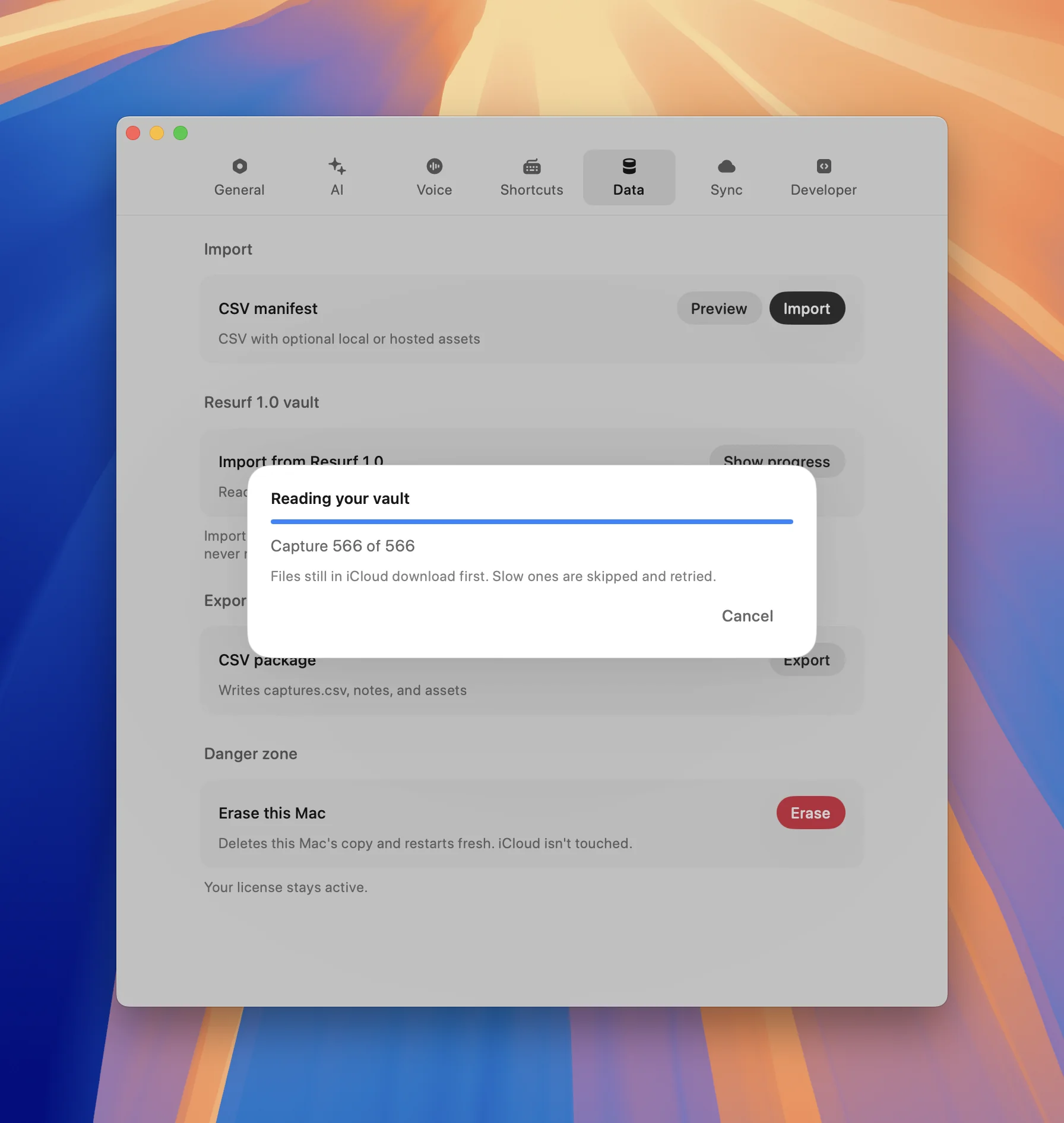
Resurf reads your vault and shows you exactly what it found before importing anything: the capture count, every space that will be created, and the number of notes, files, and AI summaries coming across.
This is a read-only pass. Nothing has been written yet, and you can back out.
You may also see a few notes here:
- Files still in iCloud. Files that haven't downloaded yet get pulled down first; slow ones are skipped and retried. If it keeps stalling, download the vault first.
- Disk space. Your files are copied, not moved, so you need room for a second copy. If you're short, Resurf tells you how much to free up.
- Quit the old Resurf app if it's still running.
When it looks right, click Import.
Step 5: Let it run
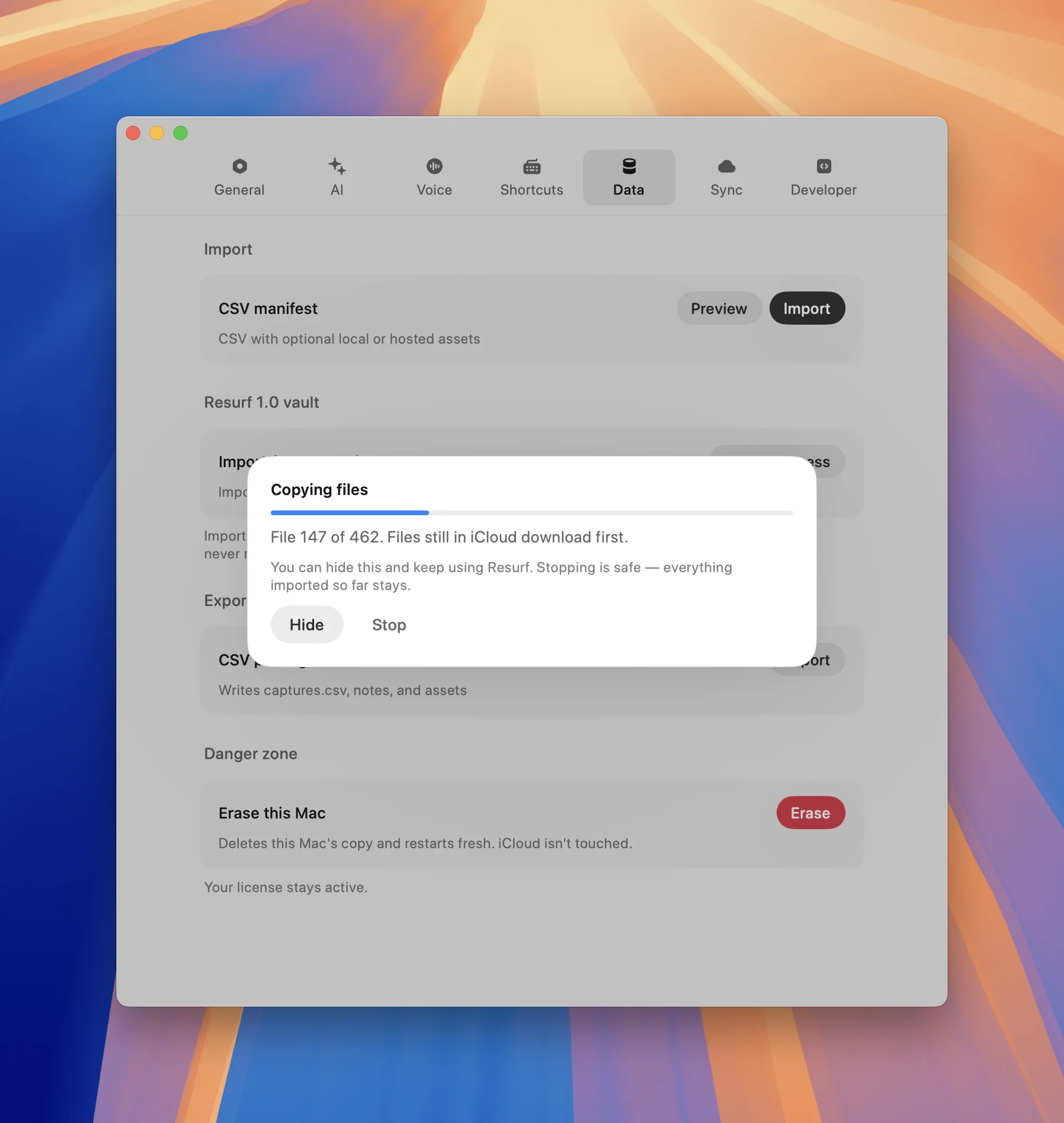
You don't have to sit and watch. Click Hide and keep using Resurf while it works.
Stopping is safe too. Everything imported up to that point stays in your library, and if you run the import again later it skips the captures that already made it across. You can't accidentally end up with everything twice.
What comes across
Everything. Nothing in your vault is left behind:
- Captures, with their original dates
- Spaces, with their names, icons and colours
- Tags
- Notes
- Files and attachments
- AI summaries you'd already generated (kept, not regenerated)
- Pins, and anything you'd snoozed or marked for later
Two things land somewhere slightly different:
Archived captures come across as ordinary captures. Resurf 1's Archive was a shelf, not a bin, so rather than dropping those captures into a trash they were never in, Resurf 2 brings them into your library alongside everything else.
Todos become notes. Resurf 2 doesn't have a separate Tasks feature, so v1 todos arrive as notes with their text intact.
Your old vault is never modified
Worth saying plainly, because it's the thing people ask about: the importer only ever reads your Resurf 1 vault. It copies files out of it into a fresh location and writes nothing back. Your old vault is exactly as it was when you started, and Resurf 1 will still open it normally.
So there's no point of no return here. If something looks wrong, quit Resurf 2, open Resurf 1, and nothing has changed.
Retiring Resurf 1
Once you've had a look around and everything's there, you can move Resurf 1 to the Trash. This isn't a one-way door either. The download links in Before you start keep working if you ever need the old app back.
It's worth actually doing rather than leaving it around, because two copies of Resurf running at the same time will quietly compete over a few things:
- The
resurf://link scheme: macOS picks one handler and you don't get to choose which - The port the browser extension talks to: whichever app started first wins it, so captures from your browser may land in the old app
- The global capture shortcut: the second app to launch can't register it, so its shortcut silently does nothing
None of this causes damage, and none of it happens if only one is running. But if you're keeping Resurf 1 around as a safety net for a while, keep it quit, and open it only when you specifically want to look at something.
One thing to avoid entirely: don't point both apps at the same vault folder. They store things differently and neither knows the other is there.
Licences
Resurf 2 is free to use for up to 50 captures and 4 spaces on Mac. Past that you'll need a licence: $49 for two years of updates, or $99 for lifetime. Both are one-time payments, no subscription.
Resurf for iPhone and iPad is free and unlimited, with no licence needed at all.
If you're importing a large library, activate your licence first. The import respects your capture limit.
If something goes wrong
"This folder isn't a Resurf 1.0 vault." You've picked the wrong folder. Open Resurf 1's settings and use the vault path shown there. If you've already deleted the app, re-download it. Links are in Before you start.
Files stuck in iCloud. The vault isn't fully downloaded yet. In Finder, right-click it → Download Now, wait for the cloud icon to disappear, then import again. Already-imported captures are skipped. More in Finding your vault in iCloud.
Not enough disk space. The importer tells you roughly how much to free up. Do that, then click Check again. You don't need to start over.
Something else. Email support with what you saw. The importer writes a report alongside the import, which makes most problems quick to pin down.