No content leaves an iPhone or iPad until you tap Allow on that device.
AI providers
Connect your own AI provider with your own key. Resurf's AI features stay off until you do.
- Default
- Off
- Mac
- Settings → Providers
- iPhone and iPad
- Settings → AI
- On
- Mac, iPhone, iPad
Connect a provider
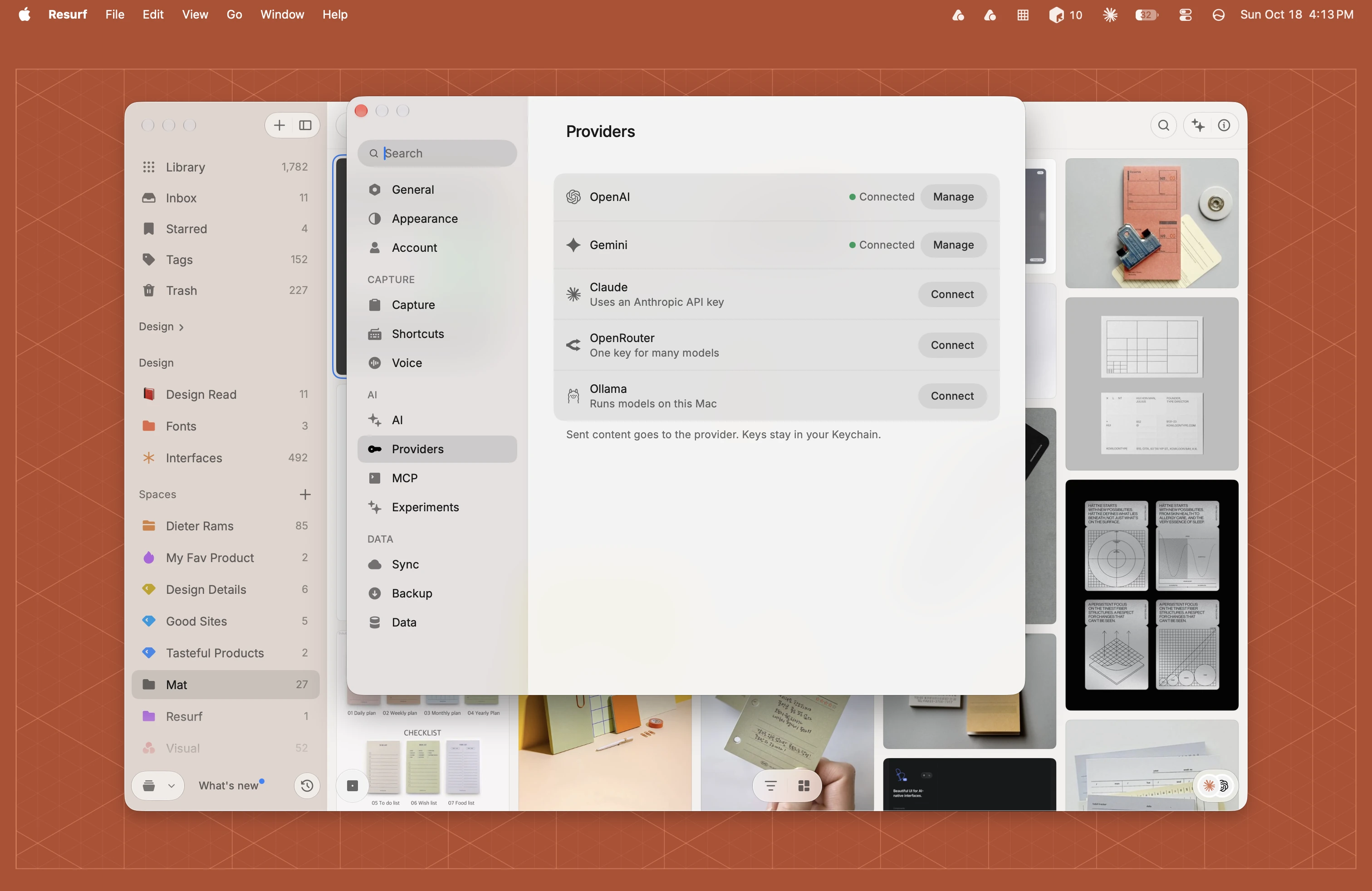
On Mac you can connect OpenAI, Claude, Gemini, OpenRouter, or Ollama, which runs models on your Mac. iPhone and iPad offer the same four hosted providers, without Ollama.
Each provider has its own page with where the key comes from and what to check when the test fails:
Choose Settings… (⌘,) and click Providers in the sidebar.
Click Connect beside a provider.
Paste your key into API key and click Connect. Resurf sends one test request to check it. Ollama needs no key; after connecting, pick one of its models in Settings → AI → Model.
The provider moves to the top and shows Connected. Your first provider also turns on AI features and Suggest as you capture.
In Resurf's Settings, turn on AI, or tap Providers if AI is already on.
Tap a provider, paste your key, and tap Continue. The Create a key at … link opens the provider's key page.
Resurf checks the key. This sends your key but no content.
Read what will be shared and tap Allow. This turns on AI and Suggest as you capture.
On your other devices
You don't set up AI from scratch on each device. Resurf syncs your AI settings through iCloud: the AI features and Suggest as you capture switches, the provider you use, your custom instructions and your voice settings. Your OpenAI key also syncs, through iCloud Keychain, so OpenAI can be ready on your other devices without pasting the key again.
Claude, Gemini and OpenRouter keys stay on the device where you entered them, so connect those on each device. Ollama is on Mac only.
On iPhone and iPad, tap Allow once on each device. Until you do, that device sends nothing to any provider.
Change or remove a key
In Settings → Providers, click Manage beside a connected provider.
To replace the key, paste a new one and click Update key. Click Test to check the connection.
If a model you want is missing, click Add custom model… and enter its id.
Click Disconnect… to remove the saved key.
In Resurf's Settings, tap Providers, then a connected provider.
Tap Replace to use a new key, or Disconnect to remove the saved key.
Disconnecting your last provider turns AI off. Disconnecting OpenAI also removes the synced copy of its key, so your other devices lose it too.
Turn AI off
Choose Settings… (⌘,) and click AI in the sidebar.
Turn off AI features. Suggest as you capture turns off with it, and Cloud voice transcription goes back to On-device.
Turning AI features back on leaves suggestions off until you turn them on again.
In Resurf's Settings, turn off AI. Suggest as you capture turns off with it.
The switch syncs through iCloud, so turning AI off on one device can turn it off on your others.
Questions
Is AI on by default?
No. AI is off, and nothing AI-related runs, until you connect a provider.
Why did AI turn on by itself?
Connecting your first provider turns on AI features and Suggest as you capture.
I skipped AI during first-run setup. Can I add it later?
Yes. Connect a provider any time in Settings → Providers on Mac, or Settings → AI on iPhone and iPad.