Turning sync off stops it on this device only. Your iCloud copy and your other devices stay as they are.
Sync
Your library syncs between your devices through your private iCloud, and it starts on its own.
- Where
- Settings → Sync
- On
- Mac, iPhone, iPad
Turn sync on or off
Sync is on from the start. Your devices need to be signed in to the same Apple Account. Each device has its own mode, so turning sync off on one leaves the others alone.
Open Settings (⌘,) and choose Sync.
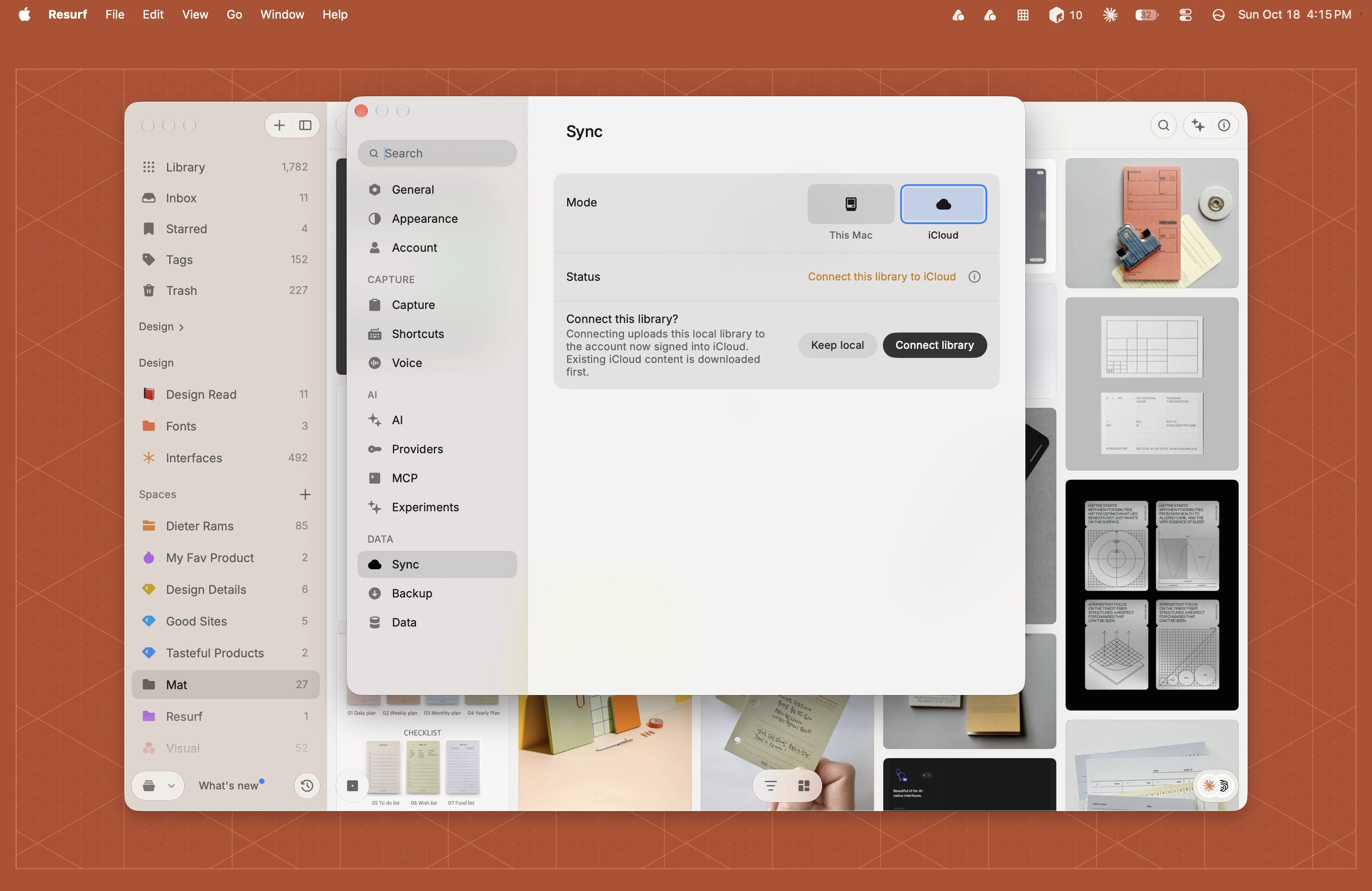
In Mode, pick iCloud to sync, or This Mac to keep this Mac's library local.
In Resurf's Settings, tap Sync.
Tap Sync and pick iCloud to sync, or This iPhone (This iPad on iPad) to keep the library local.
What syncs
- Syncs: captures with their notes, files, tags, spaces and comments; your spaces, areas and authors; and deletions.
- Stays on each device: stacks and saved views, the search index and thumbnails, and your backup settings and sync mode.
- Shared on their own: your AI and voice note settings go through iCloud even when sync is off. Theme isn't shared.
Offline and editing on two devices
Resurf works offline. Everything saves on the device first and syncs when you're back online.
When the same capture changes on two devices:
- Tags, spaces and comments added on either one are all kept.
- For the title and other single fields, the newer edit wins.
- For a note's text, the newer version wins and the other is kept as a copy.
Resurf keeps up to five copies per capture, named note.conflict-<date>.md, in the capture's folder on the device whose version lost. They don't show in the app; on Mac, find them in Finder.
Switching Apple Accounts
If the library sees a different iCloud account than before, sync waits and asks Connect this library? Connecting uploads this library to the account now signed in to iCloud. Anything already in that account downloads first.
Open Settings (⌘,) and choose Sync.
Click Connect library, or Keep local to keep this Mac's library off iCloud.
In Resurf's Settings, tap Sync.
Tap Connect beside Connect library to iCloud, or tap Keep this library local.
Questions
I got a new Mac. How do I get my library onto it?
Sign in to the same Apple Account, install Resurf and open it. Your library downloads from iCloud. Keep Resurf open until the first download finishes.
Does turning sync off on my iPhone turn it off on my Mac?
No. Each device keeps its own mode.
Why don't I see a Resurf folder in iCloud Drive?
Resurf syncs through its own private iCloud database, not iCloud Drive.